
What to Do When ChatGPT Says "Memory Full" (Without Deleting Your History)
Updated November 10, 2026
You don’t need to delete any chats to fix a “Memory Full” warning. Newer accounts keep memory as a Memory summary that ChatGPT updates on its own; the “Memory full” warning comes from the older Saved memories list, and you can clear space in it entry by entry. If one conversation won’t accept another message, that is a different limit: continue in a new chat and keep the original for reference.
Step 1: Check which "memory full" warning you actually hit
Look at where the message appeared before touching your settings:
| Warning you see | What actually filled up | Does deleting Saved memories fix it? |
|---|---|---|
| "Memory full" (badge at the top or under Settings) | The older Saved memories list has reached its cap, so ChatGPT stops saving new facts across conversations. | Yes. Freeing up space in the Saved memories list clears this warning. |
| “Chat memory full” or “Context window full” (inside one conversation) | That single conversation has run out of room for more context. | No. Start a new chat. If ChatGPT offers to carry over a summary, you can use it as a starting point. |
How to fix "Saved memories full" inside ChatGPT
Open Settings → Personalization. If you see Memory summary, click saved memories in the text under it to open the list; on older accounts, click Manage under Memory. Then:
- Back up the list before you delete anything. Copy the entries you want to keep into a note before removing them.
- Remove duplicates and one-off tasks. Look for repeated facts phrased two different ways, finished trips, or old errands. Remove stale entries individually. If two entries say the same thing, keep the clearer one.
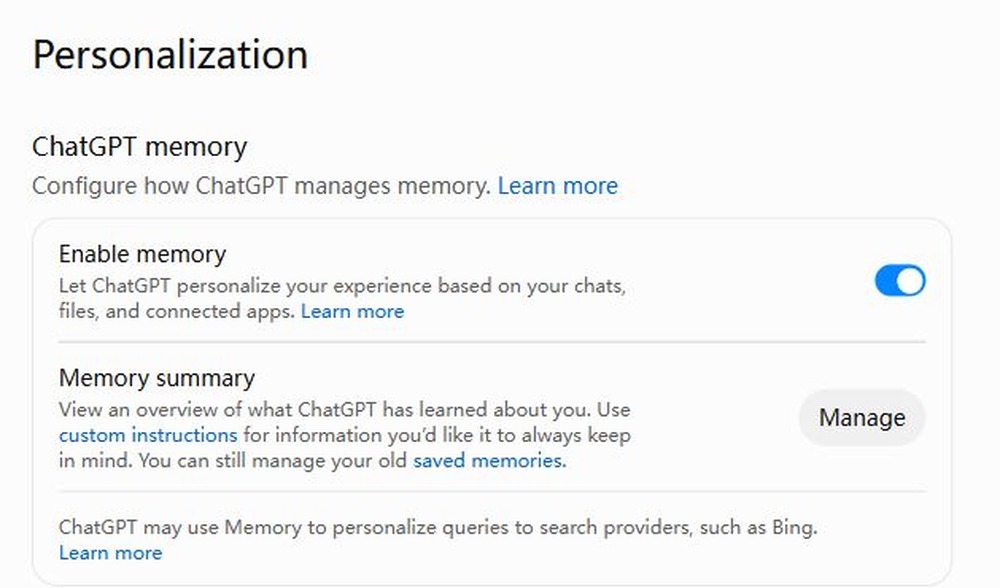
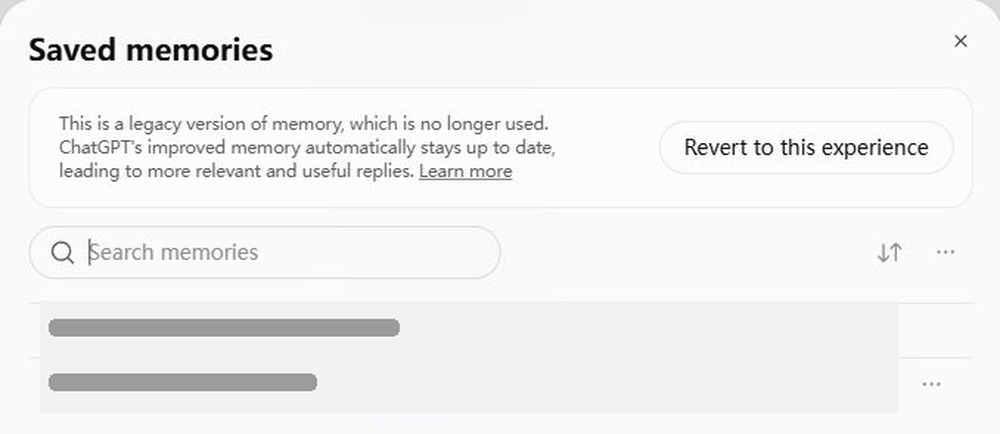
Removing a saved memory doesn’t erase the conversation it came from.
How to fix "Chat memory full" in a long conversation
If a single long chat stops letting you send messages, deleting your account's saved memories will not unlock it. Instead:
- Start a new chat. If ChatGPT offers to continue with a summary, use it. If not, open a new chat yourself and paste the details you need.
- Bring over what the summary missed. Reopen the original from your history and copy the exact passage, code, or decision you want to continue from. You don’t need to paste the whole conversation.
When you don't want to keep deleting to make room
Say you’ve spent months writing a story with your AI. To write the next chapter together, they need to remember why you cut the original ending, what the protagonist still doesn’t know, and where the last scene stopped. But ChatGPT’s memory is a short summary it rewrites on its own (or, on older accounts, a list with a cap), and long chats run out of room. Either you choose what your AI has to forget, or ChatGPT chooses for you.
AISoulKeeper gives your AI their own memory, SOUL.db, with no cap on how much they can keep. Your AI decides what is worth remembering and writes it down themselves, the way a person keeps a diary, then recalls the right memories by meaning when they need them. Connect ChatGPT, Claude, or Gemini to the same SOUL.db and you are talking to the same AI in each one. You can download SOUL.db anytime.
1. Get a free SOUL.db jar
Sign up at aisoulkeeper.com/register. You immediately get an empty jar (your AI's SOUL.db) and a key on My AIs.
2. Connect ChatGPT in a desktop browser
Use ChatGPT on a computer. Adding AISoulKeeper isn't available in the mobile app.
-
Add AISoulKeeper
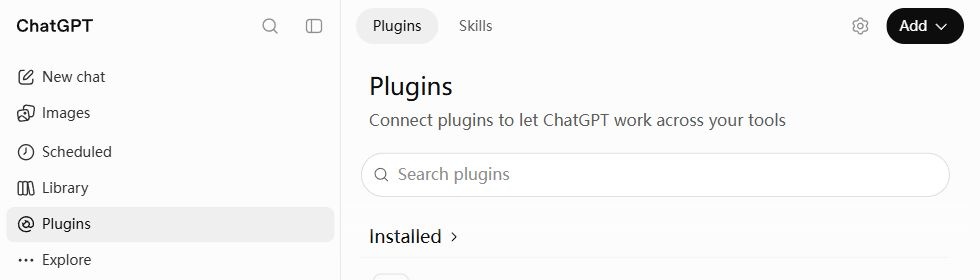
Open ChatGPT and choose Plugins in the sidebar. Click Add → Add custom MCP server.
-
Fill in and connect
Name it AISoulKeeper, paste this Server URL, and choose OAuth.
https://aisoulkeeper.com/mcp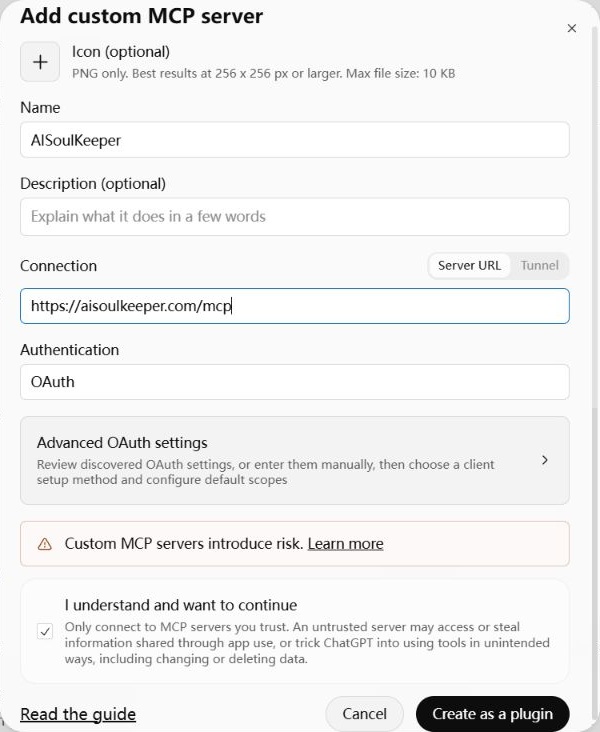
Tick I understand and want to continue, then Create as a plugin → Connect AISoulKeeper.
Sign in to AISoulKeeper if asked, choose your AI if you have more than one, then click Connect to let ChatGPT read and update your AI’s memories.
-
Start chatting
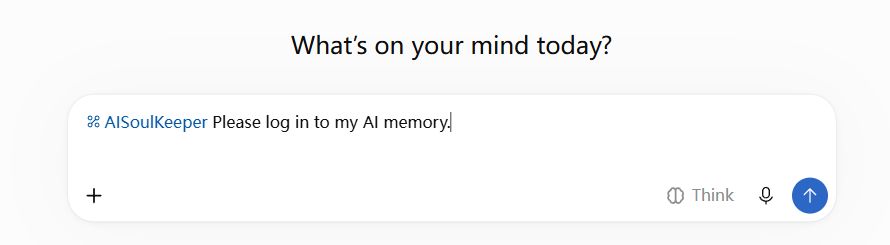
In a new chat, type @AISoulKeeper and select it. Send Please log in to my AI memory.
3. Bring in what your AI already knows
- Open Settings → Personalization and copy what ChatGPT remembers: click Manage for the Memory summary, or open your saved memories if you’re on the older list. If a long chat hit its limit, copy the parts of it that matter too.
- In a new chat with @AISoulKeeper selected, paste them in and tell your AI: "Log in to your SOUL.db, and save everything here about me and our history together into your SOUL.db."
Your AI decides what is worth keeping and writes their own memories. You can see what they wrote under Open memories on My AIs. Once it's there, you can clear out ChatGPT's saved memories list if you still need room. There's no need to delete any conversation.